
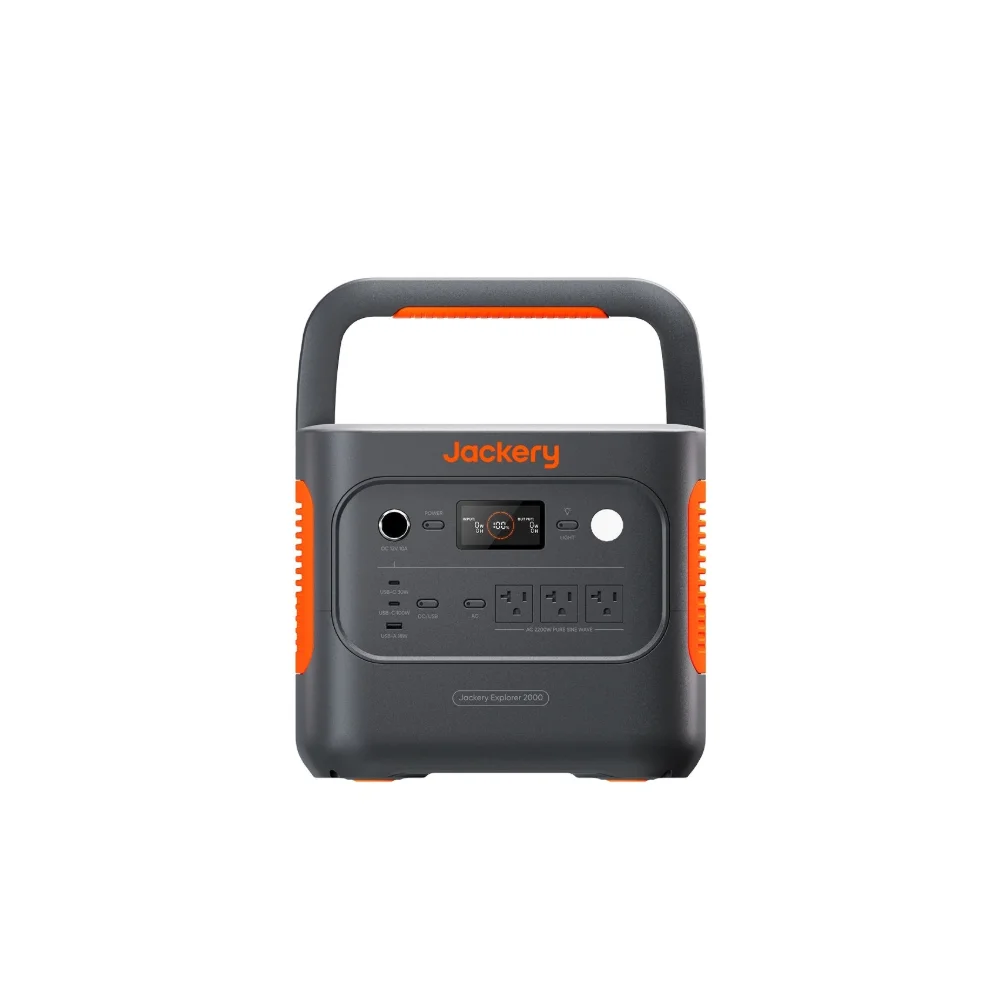

A power station that won’t pair with its app, or a firmware update that stalls at 40% and won’t move, is one of the more common frustrations owners run into — and it usually has nothing to do with the battery itself failing. These units are as much small computers as they are batteries now: they run firmware that manages charge rates, temperature limits, and safety cutoffs, and a companion app that handles Bluetooth or Wi-Fi pairing, remote monitoring, and the update process itself. Most of what goes wrong falls into a short list of predictable causes, and most of it is fixable in a few minutes without contacting support, once you know where to look.
Why firmware updates matter, not just app features
It’s tempting to skip firmware updates the way you might skip a minor app update on your phone, but power station firmware controls things with real safety and performance implications: charge curve optimization, battery management system (BMS) calibration, thermal cutoff thresholds, and compatibility with newer solar panels or accessories. Manufacturers also use firmware updates to patch bugs that cause exactly the kind of pairing and charging issues covered below, so an outdated unit is more likely to have problems, not less. Check for updates every month or two, and always update before a trip or before storing the unit for an extended period, since a mid-update failure is more disruptive when you actually need the station working.
Fixing app pairing and Bluetooth connection issues
- Restart both devices first. Close the app completely (not just background it), power-cycle the station if it has a Bluetooth toggle, and reopen the app. This resolves a surprising share of pairing failures on its own.
- Check location and Bluetooth permissions. Many power station apps require location permission on Android specifically to scan for Bluetooth devices, a quirk of the Android Bluetooth API rather than anything about the app itself — if pairing silently fails, this is the first thing to check in your phone’s app permissions.
- Forget and re-pair. Remove the device from both the app’s device list and your phone’s Bluetooth settings, then pair fresh rather than trying to reconnect to a stale pairing.
- Stay within range during setup. Bluetooth pairing typically requires being within about 10–15 feet of the unit, closer than the range you can maintain once paired — walk closer if initial pairing keeps failing.
- Update the app itself. An outdated app version is a common cause of pairing failures with newer firmware, since the two are often released together and expected to match.
When a firmware update stalls or fails
A stalled update is unsettling but rarely destructive — most power stations are designed to fail safely mid-update rather than brick. Keep the station plugged into wall power during any firmware update, since a battery drop or disconnection mid-flash is the most common cause of a failed update, and keep your phone close with Bluetooth connection stable if the update transfers over Bluetooth rather than Wi-Fi. If an update stalls for more than 10–15 minutes with no progress, don’t unplug the unit — most apps have a retry option, and forcing a restart mid-flash is the scenario most likely to actually cause damage. If a retry fails repeatedly, check the manufacturer’s support site for a standalone firmware updater tool, which some brands offer as a more reliable alternative to the phone app for exactly this situation.
Common charging and output problems that aren’t hardware failures
- Station won’t charge past a certain percentage. Often a firmware-set charge limit designed to preserve battery lifespan, adjustable in the app’s battery health settings rather than a fault.
- Slower charging than expected from a wall outlet. Check whether the app has an “eco mode” or charge-speed limiter enabled, a common default setting that trades charge speed for reduced heat and longer battery life.
- App shows a different battery percentage than the unit’s own display. A minor sync delay is normal, but a persistent mismatch after a firmware update usually resolves with a full app restart and a fresh Bluetooth reconnect.
- Output cuts out under a moderate load well below the rated wattage. Check for a loose or damaged cable connection before assuming it’s a station issue — a worn power input/output cable is a more common culprit than an internal fault, and swapping to a fresh, properly rated cable rules it out quickly.
When to actually contact support
Escalate to manufacturer support if the unit shows a specific error code on its display (write it down exactly, since these usually map to a documented fault in the manual), if a firmware update fails repeatedly across multiple attempts and devices, or if you notice physical signs like swelling, unusual heat, or a burning smell — the last category is not a troubleshoot-it-yourself situation under any circumstances. For everyday app glitches and stalled updates, though, the steps above resolve the large majority of cases without needing to involve support at all.
Frequently asked questions
Is it safe to use a power station while a firmware update is in progress?
No — avoid drawing power from the unit or adding new charging input while an update is running. Let the update finish or fail on its own before using the station normally again.
Why does my power station app need Bluetooth and Wi-Fi both?
Bluetooth typically handles short-range setup and direct control, while Wi-Fi enables remote monitoring from outside Bluetooth range and often carries larger firmware update files faster. Not every app uses both, but many higher-end units do.
My power station’s app shows it’s offline even though the unit is on. What’s wrong?
This is usually a lost Bluetooth or Wi-Fi connection rather than a station problem. Close and reopen the app, confirm the station’s wireless connection hasn’t dropped, and reconnect manually if it doesn’t reconnect automatically within a minute or two.
Should I update firmware right before an important trip?
Update a few days ahead rather than the night before, so you have time to troubleshoot if something stalls. Once you’ve confirmed the update completed and the unit charges and outputs normally, you’re set to travel with it.